 NanoAside
Read at your pace
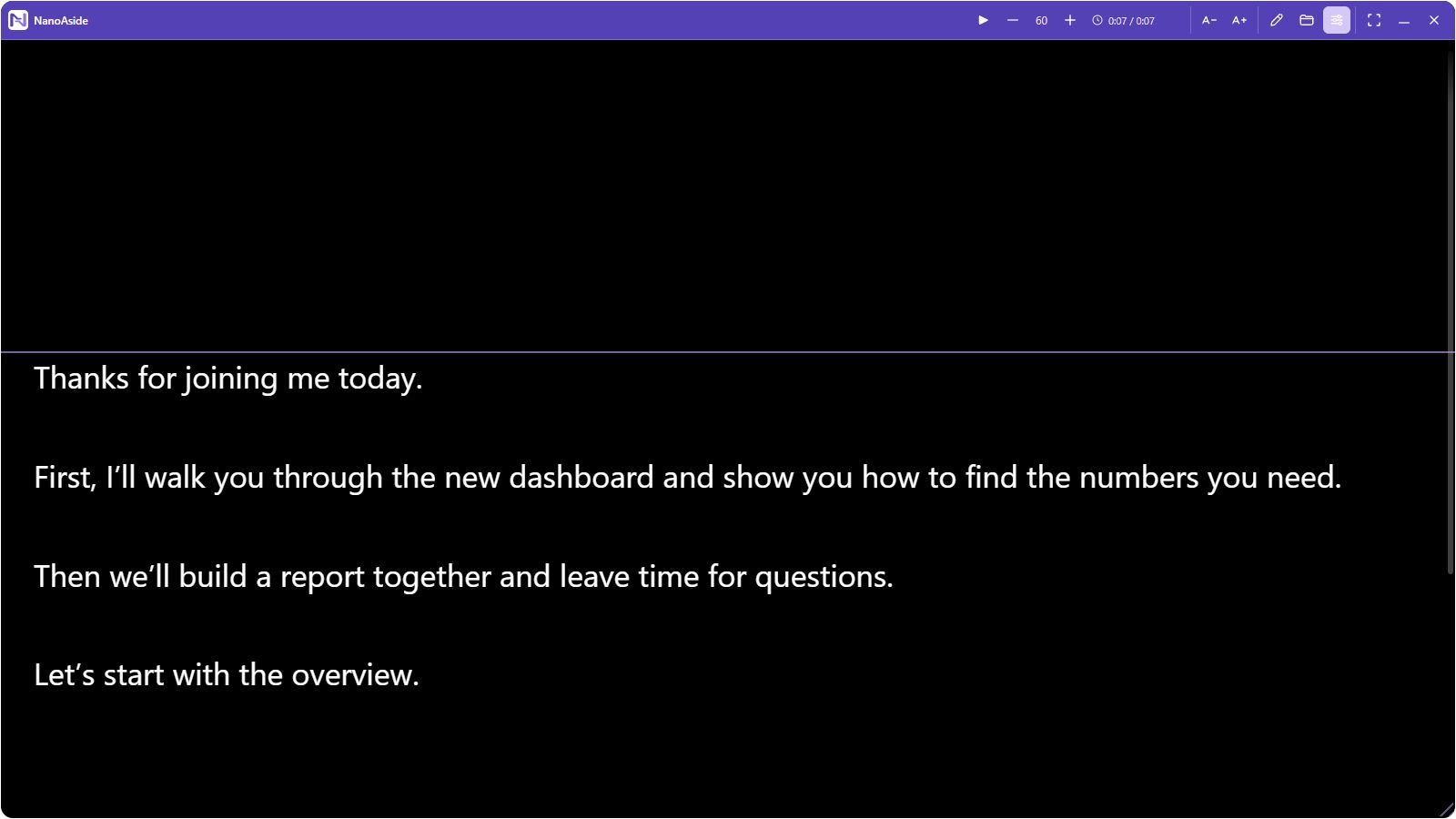
Adjust smooth auto-scroll, text size and line spacing. Grab the script to move through it, and follow the reading guide.
Windows desktop app
Read from a floating script while you present. Set your own pace and keep the overlay out of supported screen shares and recordings.
For live presentations and screen recordings
See how to set your reading pace and keep your notes with you when you share.
Try the interactive demoKeep your notes to yourself. A floating teleprompter for Windows. Paste your script and position it near the camera. Set your pace with adjustable auto-scroll. Enable Hide from screen sharing to keep notes out of supported captures. The presenter sees the script over a slide while the audience sees the slide alone. NanoAside for Windows x64 from the Microsoft Store.
Scroll through the sample script, then switch to the audience view. The slide stays in the frame while the notes drop away.
Interactive illustration. Check your sharing mode or recording source with a sample script before you go live.
Shared slide only
Paste or import a script, choose your reading setup and keep your hands on the presentation.
Adjust smooth auto-scroll, text size and line spacing. Grab the script to move through it, and follow the reading guide.
Move and resize the overlay, tune its opacity or switch to full-screen reading with F11.
Pause, restart or adjust speed with global shortcuts. Check the estimated remaining and total reading time.
Name your projects and switch between scripts. Your work saves automatically on your PC.
Import text from TXT, MD, DOC, DOCX and text-based PDF files. Each document becomes a project.
Choose a typeface, alignment and custom colors. Mark selected passages with bold, italic or underline.
Version 1.5.1
Full-screen reading, smoother scrolling and grab-to-navigate join projects, document import and text formatting.
Read the changelogWindows x64
Install through the Microsoft Store. NanoAside works offline and keeps your script and settings on your PC.
One-time purchase
Get it from MicrosoftOpen Settings and enable Hide from screen sharing. Test with a sample script and check the view from another participant before you share real notes. The result depends on the sharing app and source.
Yes. Enable Hide from screen sharing before presenting in Google Meet or recording in OBS Studio. In Meet, check what another participant sees. In OBS, check a short recording from the source you plan to use.
Purchase and install NanoAside through the Microsoft Store on a Windows x64 PC. The app itself works offline without a separate NanoAside account.
Import TXT, MD, DOC, DOCX or text-based PDF files from Projects. Imports extract text and stay on your PC. Scanned PDFs need OCR first. Each document can be up to 25 MB, with up to 300,000 characters of script text.
Install updates through the Microsoft Store using the account that owns NanoAside. Check your Library for updates and see the changelog for release notes.
NanoAside follows your Windows language for English, Portuguese and Spanish. For other languages, it starts in English. You can change the language in Settings.